

Studio White Label Building from 0 to 1
This article has one goal: to create the "Zhishuyun" Studio sub-site, allowing it to be opened via the system-assigned address. Brand details, capabilities, pricing, and custom domain names will be completed in the following three articles.
¶ Completion Effect
After creation, you will have a temporary address similar to zhishuyun.studio.acedata.cloud, and you will be able to see your site name at this address. It will be changed to studio.zhishuyun.com when officially launched.
¶ Preparation Before Starting
- Logged into YuJun Studio;
- Confirmed the site name "Zhishuyun";
- Prepared a unique subdomain prefix using only lowercase letters and numbers;
- Aware that white label configurations can only be managed by the main account in the official Studio.
¶ Step 1: Open White Label Settings
- Open studio.acedata.cloud;
- Log in to your main account;
- Click the gear button in the lower right corner of the page;
- Find "My Sub-sites" or Site management entry on the left side of the settings window;
- Click "Create Sub-site".
If you do not see the creation entry, first confirm that you are logged into the main site, not the newly created white label domain; also confirm that your account has not reached the sub-site quantity limit.
¶ Step 2: Fill in Minimum Information
Fill in according to the example below:
| Field | Example | How to Fill |
|---|---|---|
| Subdomain Prefix | zhishuyun |
Lowercase, short, recognizable brand |
| Site Name | 知数云 |
The name customers see on the webpage |
| Site Description | 一站式多模态 AI 创作平台 |
A sentence explaining what customers can do |
After clicking "Create," do not submit repeatedly in succession. Wait for a success prompt and the sub-site list to refresh.
¶ Step 3: Check with Temporary Address First
- Click on the newly created site in the sub-site list;
- Copy the system-assigned address;
- Open a new incognito window;
- Paste the address and open it;
- Check that the page loads, the site name is correct, and the login button is clickable.
Do not rush to bind the official domain name at this step. First, confirm that the Site itself can load normally, making it easier to determine if issues arise later are due to site configuration or DNS configuration.
¶ Step 4: Understand the Six Main Configuration Areas
These entries will be used later:
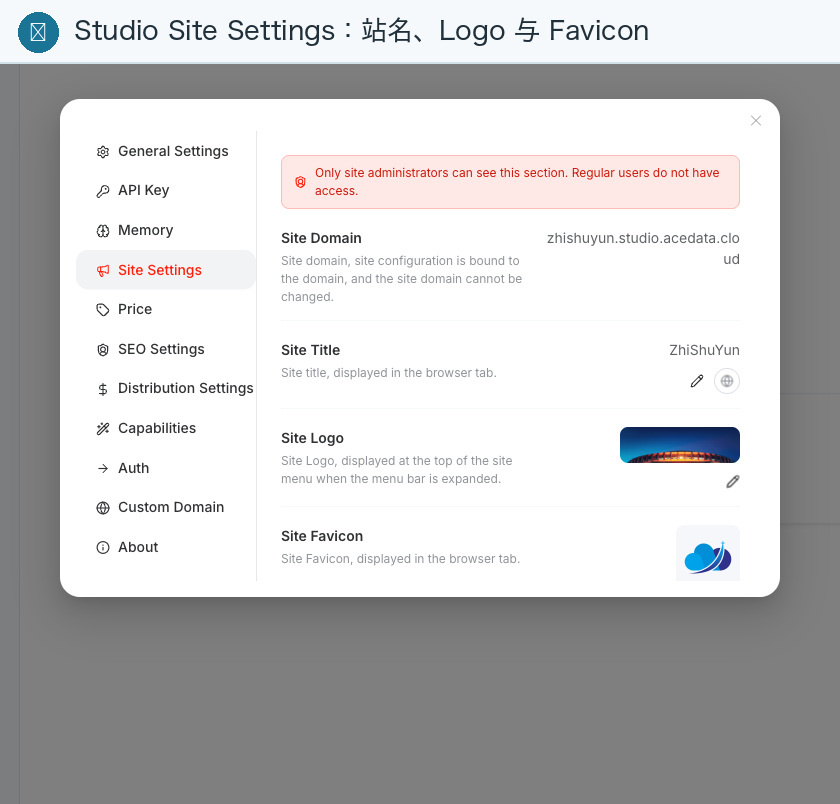
- Site Settings: Name, description, Logo, Favicon, theme, and customer service;
- Capabilities: What AI capabilities customers can see;
- Price: Price increase for the entire site and individual services;
- Auth: Login methods, default login, and SMS brand;
- Custom Domain: Bind page domain name and issue HTTPS;
- Distribution: Set default attribution for new customers.
¶ Success Indicators
- The sub-site appears in your management list;
- The system-assigned address can be opened from an incognito window;
- The page displays "Zhishuyun" instead of the placeholder name used during creation;
- Refreshing the page does not result in a 404 or blank page.
¶ Common Issues
¶ Create Button Unavailable
Check if the prefix contains uppercase letters, spaces, Chinese characters, or special symbols, and confirm that all required fields have been filled.
¶ Address Opens, but Still Shows Old Name
Wait a few seconds and force refresh; if it still hasn't updated, return to Site Settings to confirm that it was saved successfully, and use an incognito window to rule out browser cache.
¶ Cannot Find White Label Configuration After Logging In
You may have entered the sub-site. The configuration entry is in the main account settings of the official main site studio.acedata.cloud.
¶ Next Article
Continue configuring Studio Brand, Customer Service, SEO, and Login.