
Studio Custom Domain and Launch Acceptance
This article migrates Zhishu Cloud Studio from a temporary address to studio.zhishuyun.com and completes the launch acceptance using formal open standards.
¶ Completion Effect
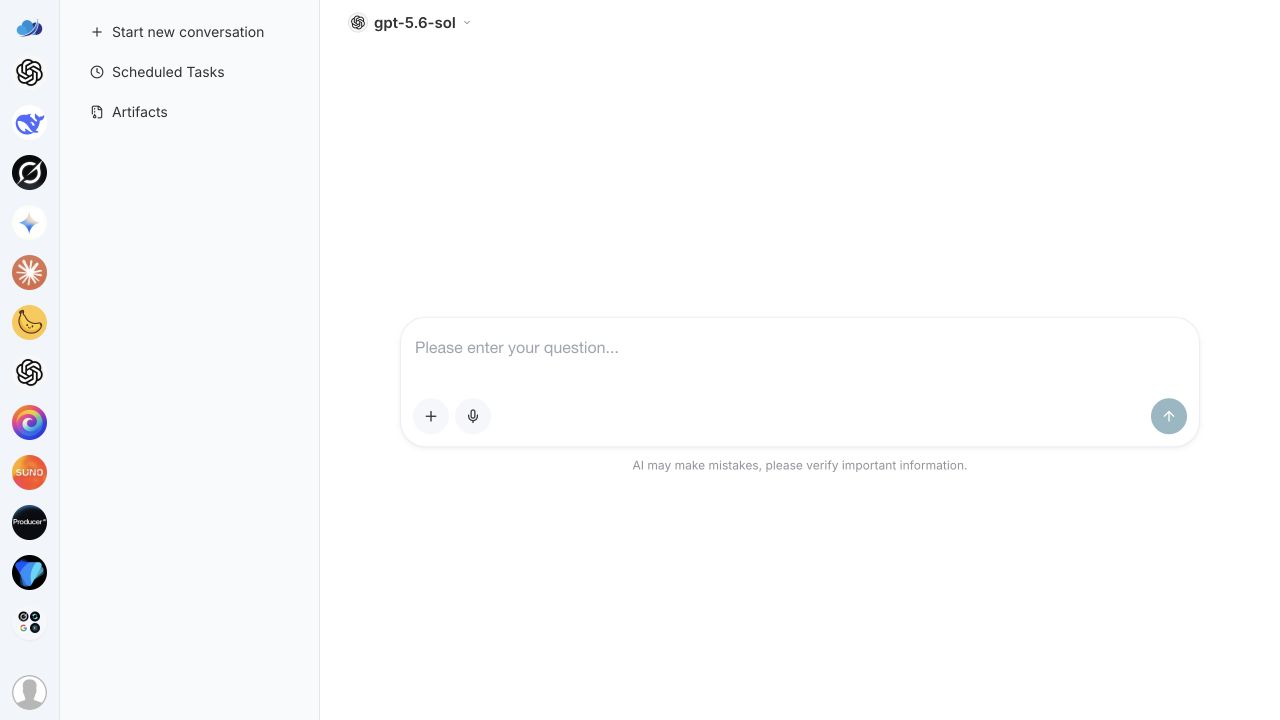
Customers can access via https://studio.zhishuyun.com, the browser certificate is valid, and the page, login, and main AI capabilities remain on the correct domain.
¶ Preparation Before Starting
- Ability to manage the DNS of
zhishuyun.com; - Name, Logo, customer service, login, capabilities, and pricing have been completed;
- Decided to use
studio.zhishuyun.com; - No conflicting A, AAAA, or CNAME records in the DNS.
¶ Step 1: Add Page Domain Name
- Log in to the Studio main site and open the sub-site settings;
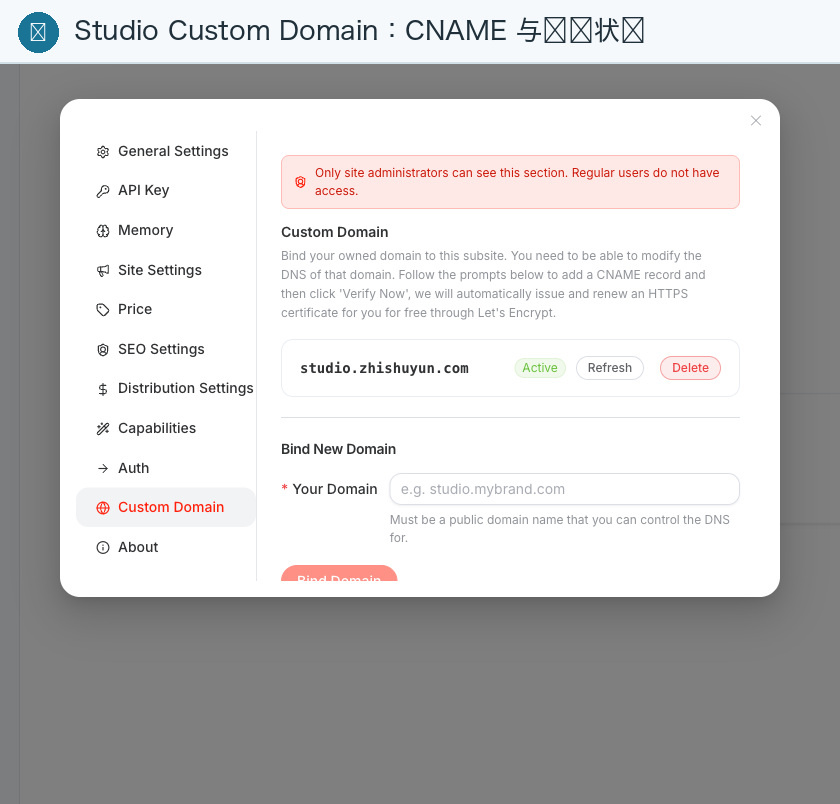
- Go to Custom Domain;
- Enter
studio.zhishuyun.com, withouthttps://, path, or trailing slash; - Click to add;
- Copy the CNAME target value displayed on the page.
¶ Step 2: Add CNAME in DNS Provider
Add a new record in the domain resolution console:
| Field | Example Value |
|---|---|
| Type | CNAME |
| Host Record | studio |
| Record Value | Studio Proxy address displayed in the console |
| TTL | Default value |
Zhishu Cloud currently resolves to:
studio.zhishuyun.com → studio-proxy.acedata.cloud
Refer to the target displayed in the console at that time, do not copy the old value from the screenshot.
¶ Step 3: Verify and Wait for HTTPS
- Save the DNS record;
- Wait a few minutes and return to Custom Domain;
- Click "Check" or "Verify";
- Wait for the status to change to Active;
- Open using
https://studio.zhishuyun.com, do not use HTTP for acceptance.
DNS effectiveness and certificate issuance are two stages. The certificate may still require a few extra minutes even when DNS is correct.
¶ Step 4: Acceptance According to Formal Open Standards
Complete using a new incognito window:
- Open the homepage and refresh three times;
- Check the name, Logo, Favicon, theme, and customer service;
- Register or log in to a test account, confirm the redirect is still
studio.zhishuyun.com; - Open a chat capability and send a minimal request;
- Open a live image or video capability, confirm tasks can be created and queried;
- Check pricing, purchase entry, and quota changes;
- View the page source code and the title, description, OG, favicon in the share preview;
- Open it once more under a mobile network.
¶ Success Indicators
- DNS query returns the CNAME required by the console;
- HTTPS has no certificate warnings;
- Login, redirect, refresh, and main capabilities are normal;
- Customer service and legal links are accessible;
- The browser loads correctly and displays the correct brand with the first screen HTML;
- Test users, orders, and usage records are traceable.
¶ Frequently Asked Questions
¶ Verification Keeps Failing
Check if the full domain name was mistakenly filled in the "Host Record," or if conflicting A/AAAA records were retained. Use public DNS queries to confirm external results, do not just look at the DNS console.
¶ HTTPS Certificate Not Ready
First, confirm that the CNAME has taken effect on the public network, then wait for the certificate to be issued. If it does not change for a long time, contact support with the recorded domain name and verification time.
¶ Browser Correct but Crawler Brand Incorrect
This is due to server-side first screen injection not passing. Provide the original HTML, User-Agent, domain, and time to support, and do not mark the SEO acceptance as complete before fixing.
¶ Next Article
If you want to sell APIs to developers, continue reading Building API Platform from 0 to 1; if you only operate Studio, you can directly read the customer and revenue section.